Finding your Google Maps embed URL
How to find and add your Google Maps embed URL.
A map helps guests quickly check where your restaurant is before they book, and makes it easier for them to find you on the day. Tablemap uses a Google Maps embed URL to show your restaurant location in places such as the booking widget and guest confirmation pages.
This is different from a normal Google Maps share link. You do not need the full iframe code — you only need the embed URL inside it.
How to get your embed URL
- Go to maps.google.com.
- Search for your restaurant by name.
- Open your restaurant listing on Google Maps.
- Click Share.
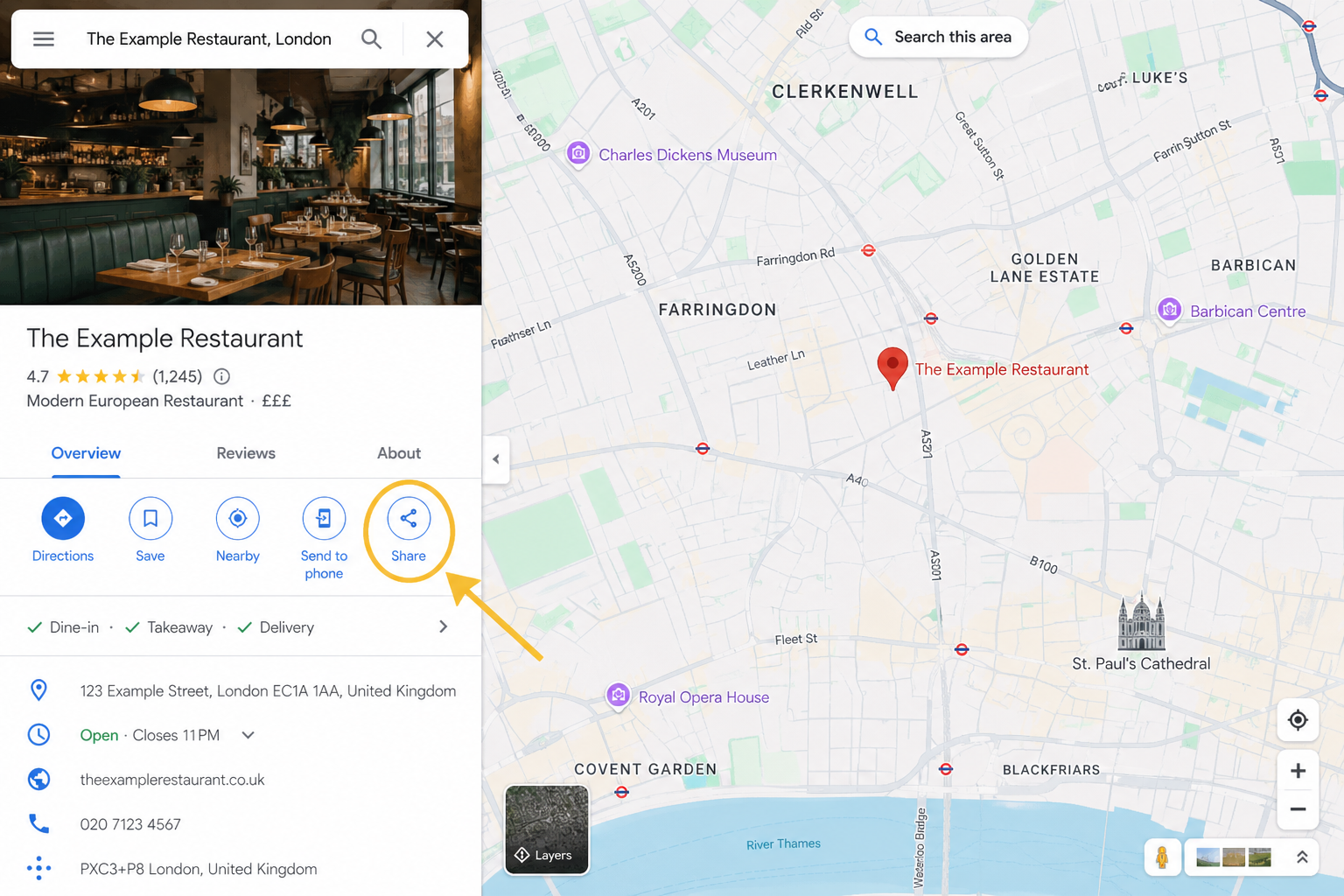
- Select the Embed a map tab.
- Click Copy HTML.
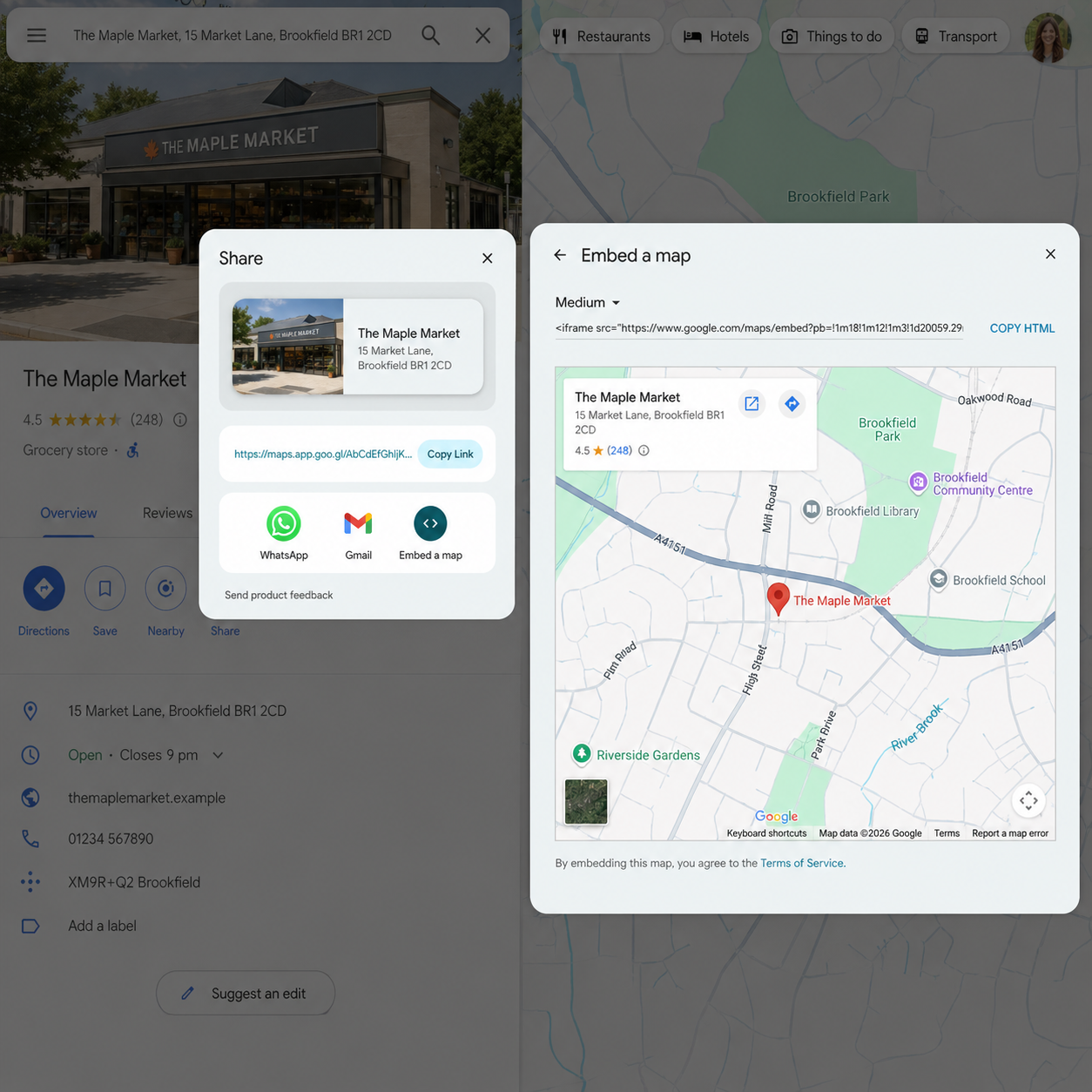
- Paste the copied HTML into a text editor, such as Notepad, TextEdit or VS Code.
- Find the part that starts with
src="...". - Copy only the URL inside the quotation marks.
Example:
<iframe
  src="https://www.google.com/maps/embed?pb=..."
  width="600"
  height="450">
</iframe>
Copy only the URL inside src="".
The URL should usually start with:
https://www.google.com/maps/embed?pb=...
Pasting the URL into Tablemap
- In Tablemap, go to Settings.
- Open Restaurant Profile.
- Find the Map Embed URL field.
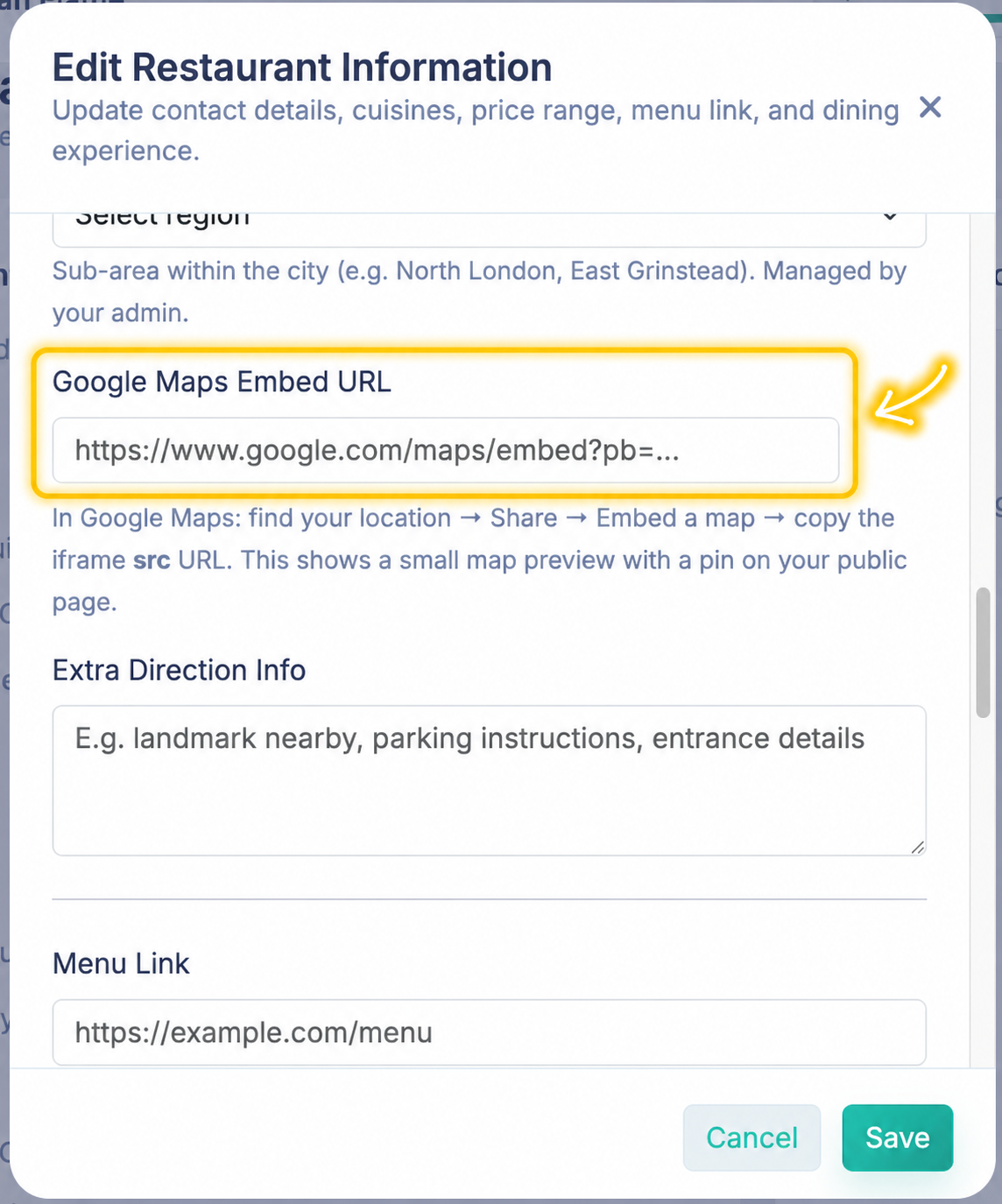
- Paste the full Google Maps embed URL.
- Save your changes.
After saving, check your booking widget or guest confirmation page to make sure the map is showing correctly.
Important: Make sure you copy the full URL from inside the
src=""attribute — not the entire iframe code. Tablemap only accepts the URL itself.
Common mistakes
- Copying the normal Google Maps share link instead of the embed URL.
- Pasting the full iframe code into Tablemap.
- Missing the end of the URL when copying it from the HTML.
- Using a link that does not start with
https://www.google.com/maps/embed.
Was this article helpful?